Magnification
Icons grow smoothly as the pointer moves over them.
Your apps, files and folders. Right where you need them.
Pragmaxy Dock for Windows 11
Magnification, live window previews, and adding and removing apps. See Pragmaxy Dock in action.
The demo could not play. Try another clip or open the video directly. Open video
The things you do all day should feel effortless. Keep your essentials close, switch between open apps and get back to what matters.
Icons grow smoothly as the pointer moves over them.
Rest the pointer on an open app to see its windows, live. Point at one to see it in place, then click to bring it forward or close it from its preview.
Add apps, files, folders and web apps by dragging them onto the dock — even straight from Start.
A floating dock or a bar along the edge. Light or dark. Your spacing, your transparency, your way of working.
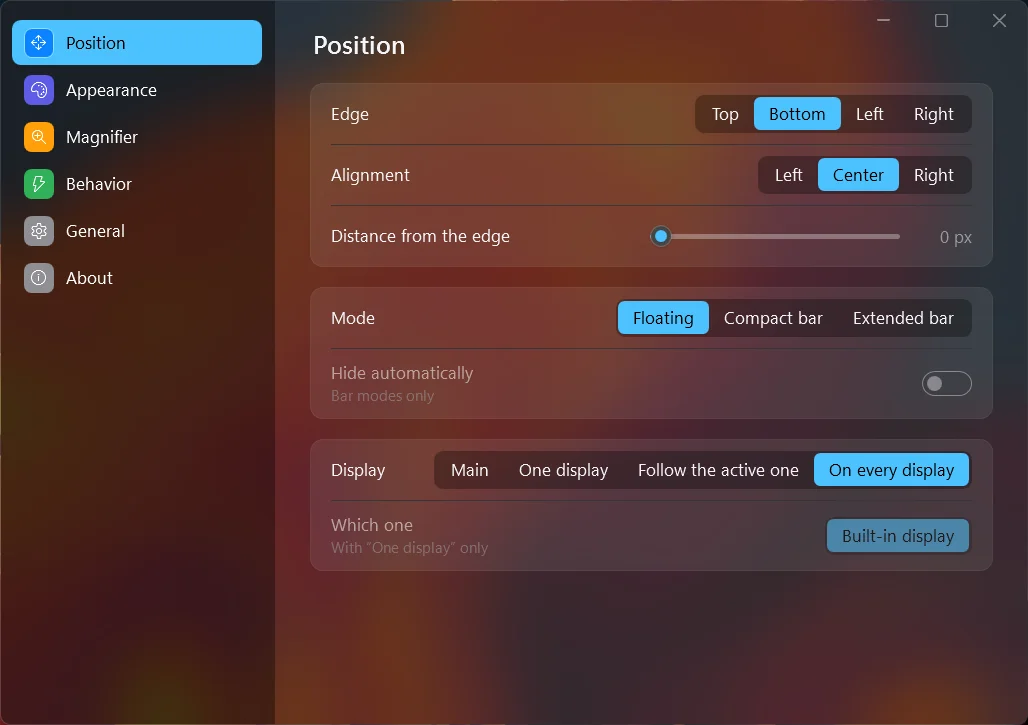
Use it as a floating dock, or as a compact or extended bar along a screen edge.
Choose the monitor the dock lives on, or let it follow the one you are using.
Follows the light or dark theme and the language of Windows, with 9 languages included.
A familiar place for everything you reach for.
A mark shows which apps have open windows. Click to bring one forward, minimise it or move through its windows.
Right-click an app to reach its recent files and tasks.
Turn on “Start with Windows” in Settings and the dock is ready as soon as you sign in.
Export your dock to a file and import it on another PC or after reinstalling.
Settings → General → “Send a problem report” prepares a file you can read before you email it to support. The dock sends nothing by itself.
No Explorer patching or injection and no administrator rights. The taskbar and Show Desktop keep working as always.
Pragmaxy Dock collects nothing and sends nothing over the network.
No Explorer patching. No administrator rights. Your Windows taskbar and Show Desktop keep working as always.
Read the privacy policyNo. Pragmaxy Dock works alongside the taskbar, which keeps working as usual.
No. It does not patch or inject into Windows Explorer, and it runs with your normal user rights.
Windows 11.
In Settings → General, “Export my dock” saves your apps and settings to a file. Import that file on the other computer.
Windows Settings → Apps → Installed apps → Pragmaxy Dock → Uninstall. Export your dock first if you want to keep it.
Pragmaxy Dock is coming soon to the Microsoft Store.

A native, lightweight dock for Windows 11 — without patching Windows.
Coming soon to the Microsoft Store